
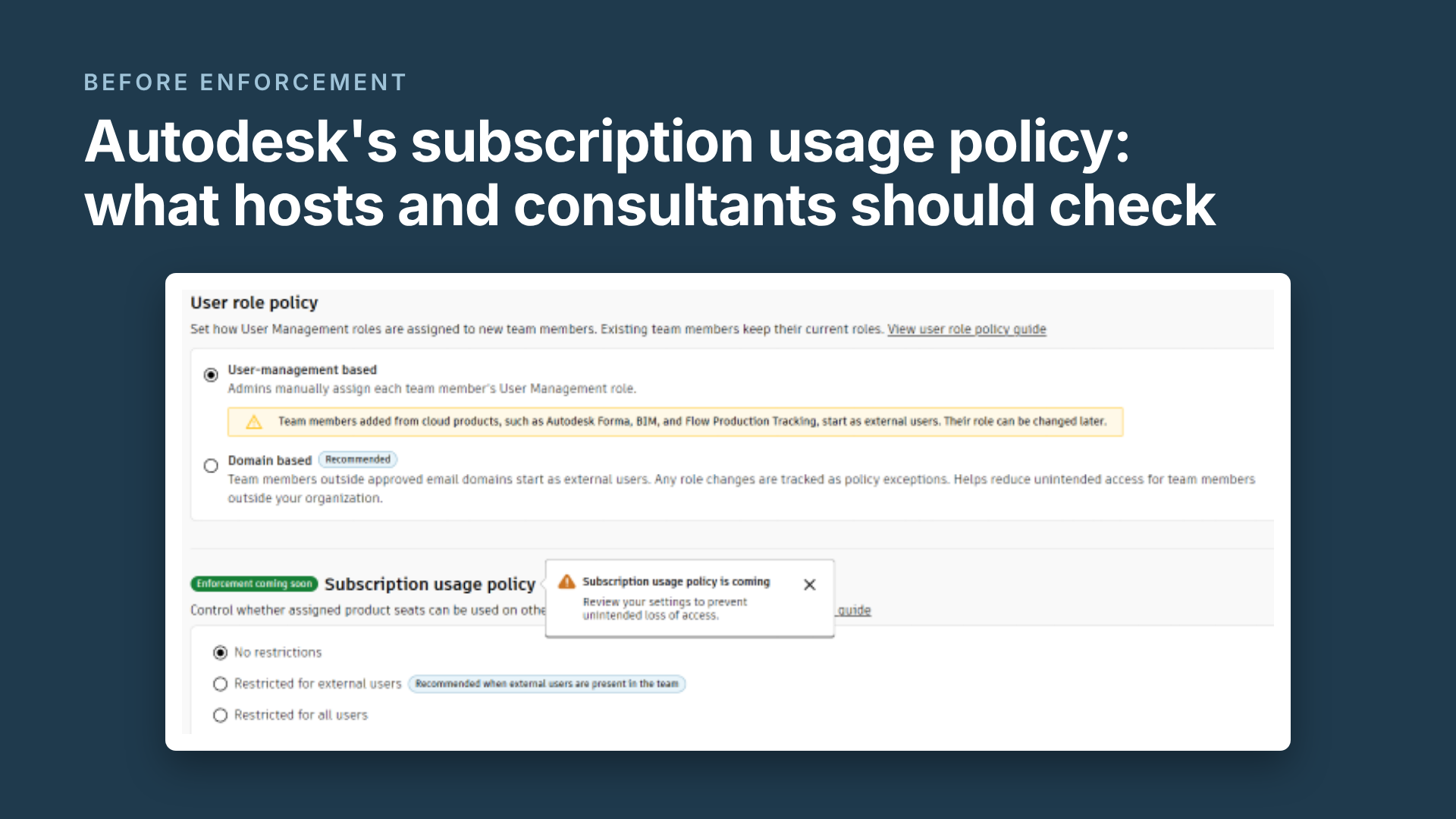
If you administer an Autodesk account, you've probably seen a pop-up titled "Subscription usage policy is coming." It offers two choices: Review policy settings, or I understand external users can no longer use Forma subscriptions outside my team. Most admins will click the second one to make the box go away.
That one click can lock consultants and clients out of projects hosted by other firms. Enforcement hasn't started yet, and Autodesk hasn't published a go-live date or a default setting, so there is still time to get this right.
I manage two Autodesk Forma (ACC) hubs for owner-side facilities work, with clients and consultants from several firms working across both. I am in it daily, and it still took a careful read to understand what this setting does. Here's the short version, and what to check.
What the policy actually does
The policy controls one thing: whether a Forma seat your team assigned can be used on a project that belongs to another team. It doesn't decide who gets invited to a project. It only decides which seat covers them once they're on it.
If you think of Forma as the early-stage site design tool, think again. Forma now includes the former Autodesk Construction Cloud apps: Forma Design Collaboration (formerly BIM Collaborate Pro), Forma Build and Forma Takeoff. Those are the products consultants and subcontractors use to move between different firms' hubs, which is why this policy reaches so far.
It lives in Autodesk Account under Settings → Team settings → User management policies, and you get three settings:
| Setting | What happens to seats you assigned |
|---|---|
| No restrictions | Usable on your team's projects and on other teams' projects. This is how things work today. |
| Restricted for external users | People your team labels "external" can't use them on other teams' projects. Everyone else can. |
| Restricted for all users | Nobody can use them on other teams' projects. |
The detail that matters most: the team that assigned the seat makes the rule. The firm hosting the project doesn't. A consultant's own employer decides whether that consultant's seat works on your hub.
The terminology trap
Part of the confusion is that Autodesk uses the same words for different things:
| Term | What it actually means here |
|---|---|
| Autodesk Account | The admin portal (manage.autodesk.com) for subscriptions and seats |
| Team | The group inside Autodesk Account that owns subscriptions and assigns seats. The policy is set here, per team. |
| Account (in ACC/Forma) | Your hub: the container for projects. A different "account" from the one above. |
| External user | A label on a person within a team, formerly "guest." It has nothing to do with who's on which project. |
The label is where firms will hurt themselves. Under the default user role policy, anyone added through a cloud product like Forma or BIM Collaborate starts as "external", your own staff included if that's how they joined. A firm that picks Restricted for external users to rein in outside contractors can quietly lock out its own people too.
One more gotcha: the Team settings page doesn't show which team you're editing. If you manage more than one team, check each one separately.
What happens on a multi-firm project
Picture a typical owner project: the owner or lead designer hosts the models on its hub, and MEP, structural and specialty consultants from four other firms work in it, each using a seat their own employer assigned.
If one of those employers restricts external use, its people lose seat coverage on your hub the day enforcement starts. Nobody at the host changed anything, and the consultant probably doesn't know a setting changed either. The first sign is a model that won't open, and the support call goes to the host.
At that point there are three ways out:
- The host assigns one of its own seats. It fixes things fast, but the cost moves to the host, and it adds up quickly across a large project team.
- The consultant's firm changes its setting to allow cross-team use. This costs nothing, but it depends on their admin understanding the issue.
- The consultant buys a seat of their own that isn't restricted.
It isn't a seat per project. One seat from the hosting team covers every project on that team. But someone working on projects hosted by three different firms, whose own firm restricts them, could need coverage from all three.
What to check before enforcement
If you host projects:
- Set every team you manage to the policy you actually want. If you run more than one hub and share seats between them, that means No restrictions on each.
- List who on your hubs is covered by another firm's seat. Those people are the ones at risk.
- Tell your consultants now: this is coming, here's the one setting to check, and here's what happens if they don't.
- Put a licensing line in your BIM execution plan or project onboarding, such as: each party provides its own Autodesk licenses and keeps its subscription usage policy open to the host's projects.
- Decide your seat rule before someone asks, for example "owner staff get our seats, consultants bring their own."
- Ask Autodesk or your reseller, in writing, for the enforcement date, the default setting, and which products are covered.
If you're a consultant firm:
- Don't click "I understand" on the prompt without reading it. That accepts the external-user restriction.
- If your people work on other firms' hubs, choose No restrictions, or at least confirm who you've labelled external.
- Check your user role policy. Staff who joined through a project invite may be labelled external.
The owner's view
For owners, this matters beyond licensing. The owner usually ends up paying for the project, and the hub is often where the handover data lives and should be transferred to the owner's hub. If consultants can't get into the models in the final months of a project, the facility data that owners depend on after handover arrives late or doesn't arrive at all.
Today the policy applies only to Forma Industry Cloud products, but Autodesk's roadmap says it will expand to additional products over time, without naming which ones or when. Treat Forma as the first product it covers, not the last. Whatever review process you set up now, expect to use it again.
The fix takes a few minutes per team. The cost of not doing it lands on whoever gets the panicked email first.
Sources
- Autodesk: Manage subscription usage for external Forma projects
- Autodesk: Manage user role policy
- IMAGINiT: Autodesk Account User Role Policy and Subscription Usage Policy
Further reading
For the license-owner side of the same setting (seat leakage, procurement, and what to ask Autodesk), see Paul Empringham's What Autodesk's new Forma subscription usage policy means for license governance.
Questions about your own hubs or turnover? Get in touch, or see how OwnerCDE carries project data into operations.